
How can Search Console identify pages losing organic visibility?
Search Console identifies pages losing organic visibility by comparing their Performance data across date ranges, highlighting declines in impressions, clicks, click-through rate and average position. Filter the report by page and search query to distinguish a genuine ranking or visibility drop from normal changes in search demand.
Search Console identifies pages losing organic visibility by comparing their search performance over time and showing where impressions, clicks, click-through rate (CTR) or average position have declined. Reviewing these metrics together, then filtering by page, query, country, device and search appearance, helps distinguish a genuine loss of visibility from changes in search demand or user behaviour.
The main evidence is in the Performance report. Start by selecting a recent comparison period and compare it with an equivalent earlier period. A like-for-like comparison is usually more useful than comparing adjacent weeks, because it reduces the effect of weekday patterns, seasonal demand and short-term volatility. Where available, use a longer date range when assessing an established page, particularly if daily impressions are variable.
When reviewing the comparison, pay attention to the following signals:
- Impressions falling: the page is appearing in fewer searches, which may indicate lower rankings, reduced search demand, lost eligibility for a search feature or an indexing issue.
- Clicks falling while impressions remain stable: the page may still be visible but attracting fewer visits. This can result from a lower CTR, less compelling title or description, a change in the search results layout, or the page appearing for less relevant queries.
- Average position worsening: the page is generally appearing lower for the queries recorded in the report. Average position is an aggregate metric, so it should be interpreted alongside impressions, clicks and the underlying queries.
- CTR falling: users are clicking the result less often in relation to its impressions. Check whether the page title and description accurately reflect the content and whether the result is competing with new or more prominent result types.
To find affected pages, open the Pages tab and sort the comparison by clicks, impressions or position difference. A page with a substantial fall in clicks is not automatically a priority: a high-traffic page may show a larger absolute decline than a smaller page experiencing a more serious proportional change. Assess the scale of the loss, the commercial value of the page and whether the decline affects important queries.
Select an individual page to examine its query data. This shows which searches contributed to the change and whether the loss is broad or limited to a particular topic. A decline across most queries may point to a page-level ranking, relevance or technical problem. A decline affecting only certain queries may indicate changing intent, stronger competing content, altered terminology or a shift in the page’s subject coverage.
Use the comparison filters to refine the diagnosis:
- Queries: identify terms that have lost impressions, clicks or position, and compare the current and previous average positions for each term.
- Countries: check whether visibility has fallen in the UK only or across several markets. A market-specific decline may relate to localisation, regional intent or changes in the page’s relevance to that audience.
- Devices: compare mobile and desktop performance. A decline on one device can justify checking responsive layouts, page speed, intrusive elements and the visibility of important content.
- Search appearance: determine whether the lost visibility relates to a particular result format or enhancement rather than standard web results.
- Date: identify when the decline began and compare it with publishing changes, template updates, migrations, indexing changes or known changes in demand.
Search Console can also help separate a ranking decline from a demand decline. If impressions and clicks fall for a page but its average position remains broadly consistent, fewer people may be searching for the relevant topics. If impressions fall while the number of searches for related terms appears stable and average position worsens, the page may have lost rankings or relevance. If impressions stay similar but clicks decline, investigate CTR and the presentation of the result before assuming that the page has lost rankings.
Check the page’s indexing status separately when the performance change is sudden or unusually large. The URL Inspection tool can show whether the URL is currently indexed, whether crawling and indexing are permitted, and when the page was last crawled. It does not provide a complete history of every past indexing state, so compare the result with known site changes and inspect the page’s technical configuration. Also check for accidental noindex directives, canonical changes, redirect changes, server errors and access restrictions.
A visibility decline can affect a group of related pages rather than one URL. Use the Pages report to identify patterns by directory, template or content type, then compare representative URLs. If many pages changed at the same time, investigate shared causes such as internal linking, robots directives, canonicalisation, structured data implementation, navigation changes, deployment issues or a change to the site’s information architecture.
Interpret Search Console data carefully. The report is based on recorded search performance, not every search in which a page could have appeared, and the data can be delayed or rounded. Recent days may be incomplete, so avoid treating an immediate drop as conclusive. Search Console’s average position is also not a fixed rank for a page: it represents an aggregate of impressions across queries, locations, devices and result types. A page can therefore show a different average position even when its ranking for an important query has not changed.
A practical investigation follows this sequence:
- Choose comparable date ranges and confirm that the latest data is complete enough to assess.
- Review total clicks, impressions, CTR and average position to establish the type of change.
- Open the Pages tab and identify URLs with meaningful losses.
- Inspect each affected URL’s queries, countries, devices and search appearances.
- Use URL Inspection and other site checks to look for indexing, crawling, canonical and technical issues.
- Compare the affected page with its previous version and with relevant pages that have retained visibility.
- Make a targeted change, record the date and continue monitoring the same filters and comparison periods.
Search Console is strongest at showing what changed, when it changed and which pages or queries were affected. It cannot by itself establish the precise cause of every decline. Combining its performance and indexing reports with site-change records, technical checks and a review of the page’s relevance provides a more reliable diagnosis and reduces the risk of changing a page based on normal search variation.
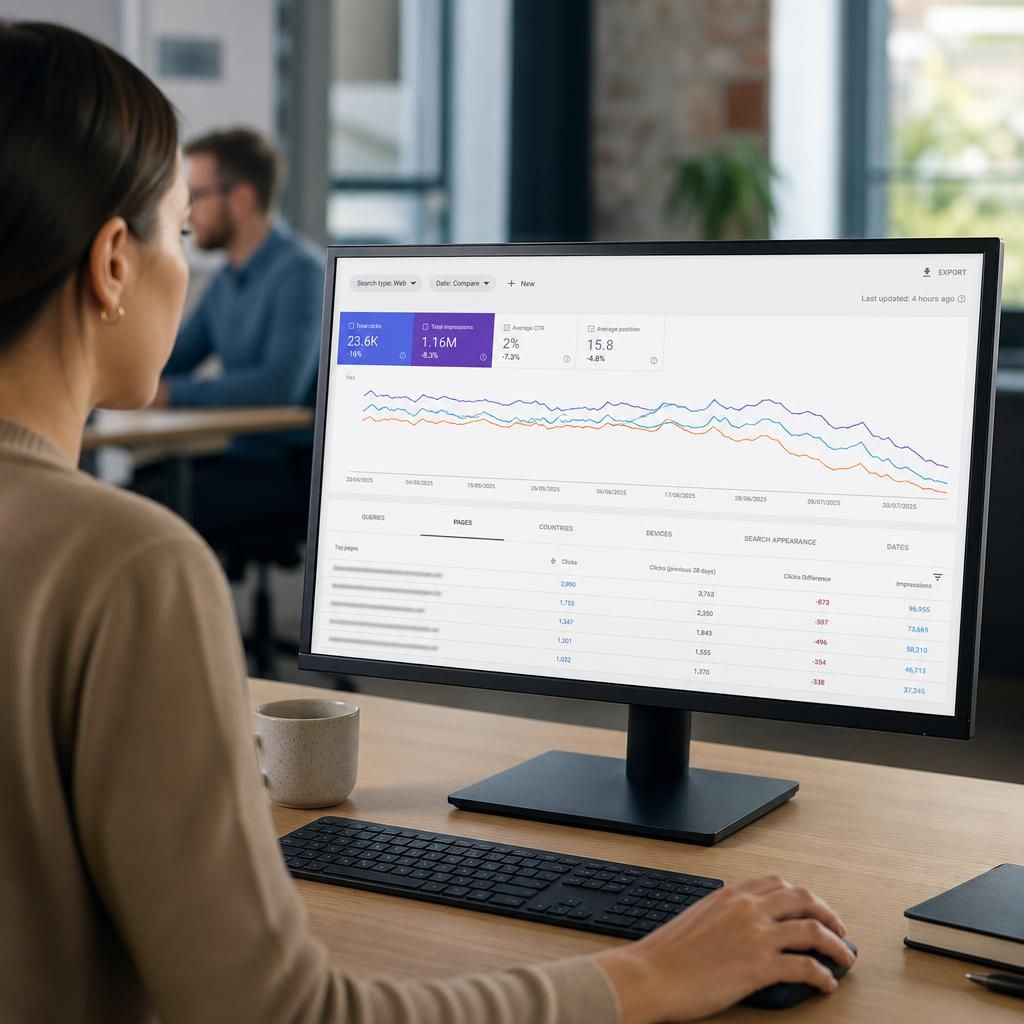
Search Console identifies a page losing organic visibility by comparing its impressions, clicks, click-through rate and average position across equivalent date ranges. A fall in impressions usually means the page is appearing less often, while a fall in clicks with stable impressions more often indicates weaker click-through performance rather than reduced visibility.
Open the Performance report, select a comparable previous period and use the Pages tab to find affected URLs. Select a page to review the queries, countries, devices and search appearances behind the change. If the decline is limited to particular queries or devices, investigate changes in search intent, result layouts or page usability. If it affects most queries and coincides with a worsening average position, check the page’s relevance, internal links, indexing status and recent technical changes.
Allow for incomplete recent data and normal seasonal demand before taking action. Search Console shows where and when performance changed, but confirming the cause requires comparing the page with its previous version and checking relevant site changes.