
How do you access the Google Keyword Planner tool?
Access Google Keyword Planner by signing in to a Google Ads account, opening the Tools menu, and selecting Keyword Planner under Planning. You can then choose Discover new keywords or Get search volume and forecasts to begin researching.
Access Google Keyword Planner by signing in to a Google Ads account, opening the Tools menu, selecting Keyword Planner under Planning, and choosing the research option that matches your objective. You can use it to discover keyword ideas, review historical search data, and assess forecasted performance for potential campaigns.
- Sign in to Google Ads. Use the Google account associated with your Google Ads account. If you do not have an account, create one and follow the setup instructions. Keyword Planner access may require account setup details, and some features or data can vary depending on the account’s billing and campaign status.
- Open Keyword Planner. From the Google Ads interface, select Tools from the main navigation. In the planning section, choose Keyword Planner. The exact position of the menu can change as the Google Ads interface is updated, but the tool remains within the planning tools.
- Choose a starting option. Select Discover new keywords when you want to generate ideas from words, phrases or a website. Select Get search volume and forecasts when you already have a list of keywords and want to review historical metrics or forecast data for them.
With Discover new keywords, enter terms that describe your products, services or topics. You can also provide a relevant website address to help generate related ideas. Use specific phrases rather than broad descriptions where possible. For example, a business offering technical SEO audits could begin with terms such as “technical SEO audit” or “website SEO audit” rather than simply “SEO”. Review the suggestions for relevance before adding them to a plan.
With Get search volume and forecasts, paste or upload your existing keyword list. The results can include estimated search volume, trends, competition indicators and forecast information. These figures are planning estimates rather than guarantees of traffic, rankings or conversions, so assess them alongside search intent, relevance and the competitiveness of the results page.
Before interpreting the results, set the targeting options to reflect the campaign or SEO project. Check the following settings:
- Location: choose the country, region, city or other area you are researching. A location setting can materially change the search estimates.
- Language: select the language used by the audience whose searches you want to understand.
- Search network: review whether the data relates to Google search only or includes search partners, where that option is available.
- Date range: select a suitable historical period when reviewing trends, and remember that seasonal demand can affect comparisons.
- Keyword filters: remove ideas that are irrelevant, too broad or unsuitable for the service, product or audience.
To use the results for SEO, group related terms by search intent rather than selecting keywords solely because they show higher demand. Separate informational searches from commercial and transactional searches, then map each useful group to an appropriate page. Avoid creating several pages that target the same intent unless they serve clearly different audiences or purposes.
If the tool displays limited or grouped volume data, check the account and targeting settings before treating the results as precise. Keyword Planner is primarily designed for paid search planning, so its forecasts and competition indicators should not be read as direct organic ranking difficulty scores. For organic search decisions, combine the data with an assessment of the current search results, the quality of competing pages, your own performance data and the subject-matter relevance of each keyword.
You can save selected ideas to a plan or download the results for further analysis, depending on the options available in your account. When exporting data, retain the location, language, network and date settings so that the figures can be interpreted correctly later. Record the date of the research as well, since search behaviour and Google Ads estimates can change.
If Keyword Planner is not visible, confirm that you are signed in to the intended Google Ads account and that you have the required account permissions. The navigation may also differ between account types and interface versions. If the tool opens but does not provide the expected detail, review the campaign, billing and targeting settings, then compare the output with other first-party search performance data before making important SEO decisions.
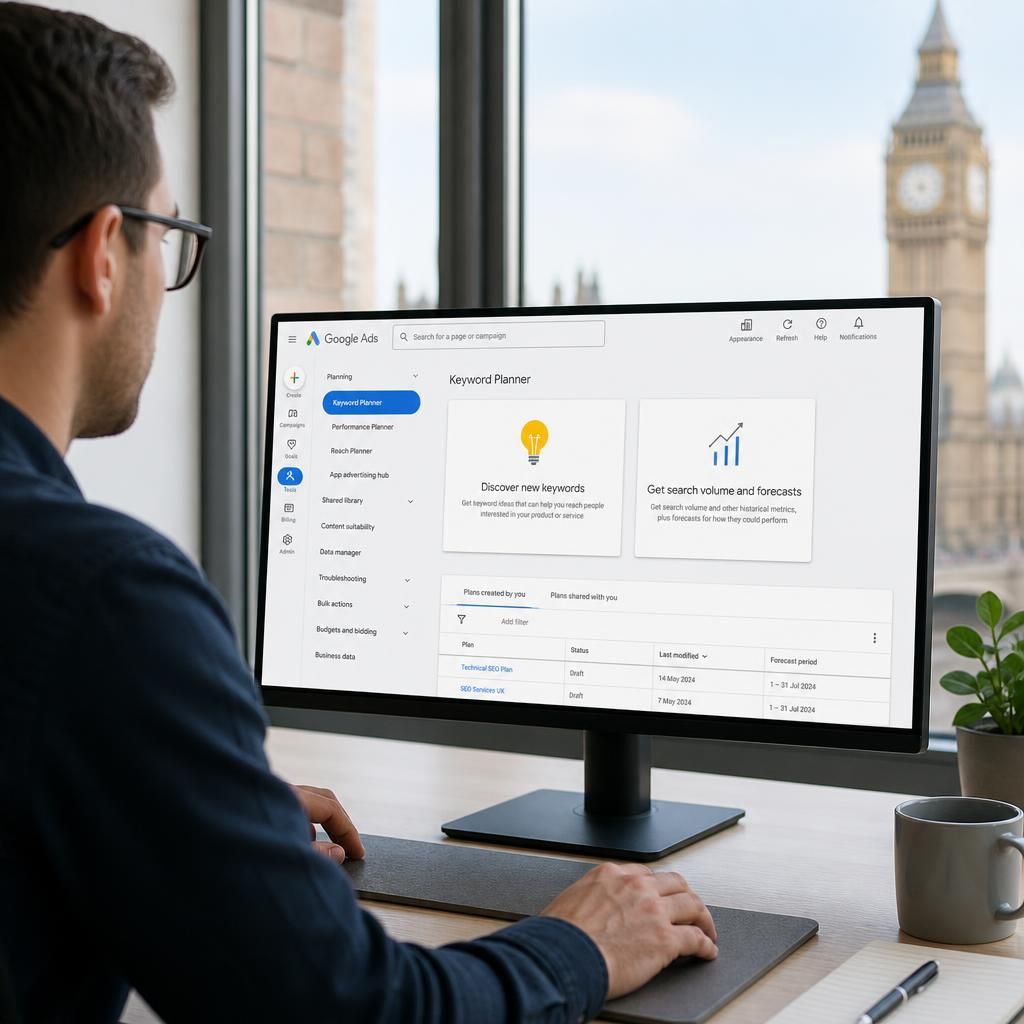
Google Keyword Planner is accessed from within a Google Ads account. Sign in, open the Tools menu, select Keyword Planner under Planning, then choose the task that matches your research.
Select Discover new keywords to generate ideas from products, services, topics or a relevant website. Choose Get search volume and forecasts when you already have a keyword list and want to review available search data or forecast information.
If Keyword Planner is not visible, check that you are using the correct Google Ads account and have the necessary access permissions. Google may also request account setup or billing details, and the available data can vary according to the account’s campaign status. Before reviewing results, confirm the location, language, search network and date settings so the information reflects the audience and market you are researching.
Start your keyword research with Google Keyword Planner
Use Google Keyword Planner to identify relevant search terms, then assess their intent and competition before adding them to your SEO plan. Review the resulting ideas alongside your existing performance data to prioritise keywords that support your business objectives.