
Why can’t I access Google Webmaster Console?
You may be unable to access Google Webmaster Console because you are signed into the wrong Google account, lack the required property permissions, or have not completed site verification. Check your account, access level, verification status and browser settings before trying again.
Access problems in Google Webmaster Console, now commonly referred to as Google Search Console, are usually caused by using the wrong Google account, having insufficient property permissions, incomplete site verification, or a browser session that is blocking the sign-in process. Check these areas in order, starting with the account and property you are trying to access.
Confirm that you are using the correct Google account. Google accounts can be personal, work-based or managed by an organisation, and access is specific to each account. Sign out of any accounts that are not relevant, then sign in with the address that was added to the Search Console property. If several accounts are open in the same browser, use a private browsing window to prevent Google from selecting the wrong account automatically.
Being able to sign in to Google does not automatically provide access to every website property. After signing in, check whether the property appears in the property selector. If it is missing, you may not have been added to it, you may be using a different account, or the property may have been set up under a different property type.
Check your permission level. A property owner can add or remove users and manage verification methods. A full user can generally view data and carry out most day-to-day actions, while a restricted user may have limited access. If you need to change settings, inspect verification, or manage users, ask an existing owner to review your access level. Permission changes may not appear until you refresh the page or sign out and back in.
If the property was verified by a previous employee, agency or developer, ask the current owner to add your Google account rather than creating a duplicate property. Creating another property can make it appear that data, settings or verification details are missing when the original property is still available to the verified owner.
Check that you are opening the correct property. Search Console distinguishes between Domain properties and URL-prefix properties. A Domain property covers the relevant domain and protocols, while a URL-prefix property applies only to a particular protocol, hostname or path. For example, the HTTP and HTTPS versions of a site can be treated as separate URL-prefix properties. Select the exact property that matches the site you want to manage.
Review site verification. If you are setting up access for the first time, complete one of the available verification methods and leave the verification element in place. Removing a verification file, meta tag or DNS record can cause access to be lost later. For a Domain property, verification is normally managed through the domain’s DNS settings. For a URL-prefix property, verification may use a file, meta tag or an associated service. If verification fails, check that the record or file is installed on the correct domain, uses the correct value and has had time to become available.
Verification and user access are related but not identical. A person can be granted access by an existing owner without personally adding a verification file, whereas the first owner must normally verify the property. If you cannot contact any verified owner, the site administrator or hosting provider may need to help restore an appropriate verification method.
Resolve common browser and connection problems. Try the following checks:
- Refresh the page and start a new private browsing session.
- Clear cached files and cookies for Google services if the page repeatedly redirects or shows the wrong account.
- Enable cookies and JavaScript for the console and sign-in pages.
- Temporarily disable browser extensions that block scripts, cookies or redirects.
- Try a different supported browser or a different network if the page will not load.
- Check whether a corporate firewall, VPN or security filter is preventing Google services from loading.
- Make sure your device date and time are correct, as an incorrect clock can interfere with secure sign-in.
If you can sign in but the console shows an error such as “access denied”, “permission required” or “property not found”, the issue is more likely to be account access or property selection than a browser fault. Ask a verified owner to confirm the exact Google account address, property URL and permission level that was granted. Avoid sharing your password; access should be provided through the console’s user management controls.
If the console loads but reports that no data is available, this does not necessarily mean that access has failed. You may have selected the wrong property, the site may have only recently been verified, or the selected report may not yet contain data for the requested period. Check the property selector, date range and relevant report before changing the site’s verification settings.
When the problem affects several users, check for a wider Google service or account issue and try again later. If only your account is affected, record the exact error message, the property selected, the account used and the steps already attempted. This information will help your website administrator or technical support team identify whether the cause is permissions, verification, browser configuration or account security.
Once access has been restored, keep at least one current owner account under the organisation’s control, review users regularly and document the verification method. These measures reduce the risk of losing access when a staff member, agency or supplier leaves the account.
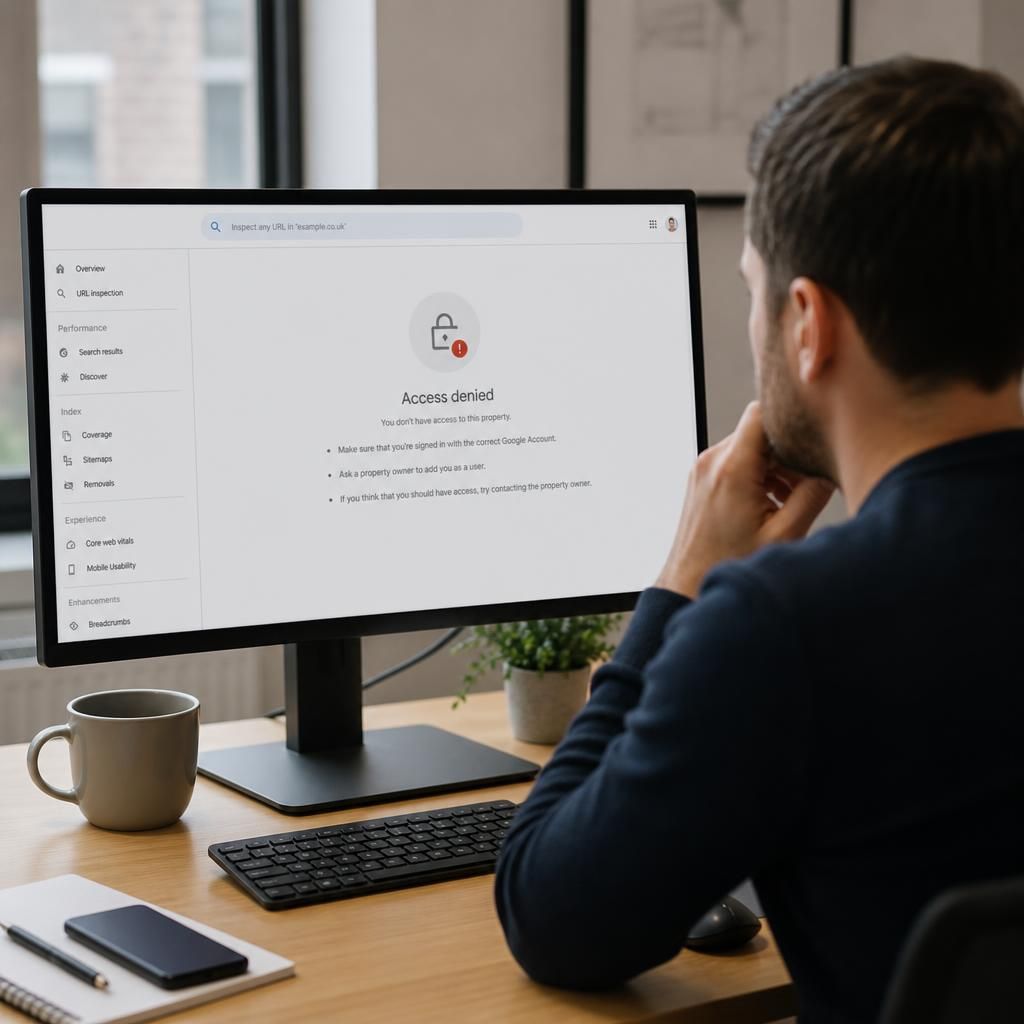
Access to the Webmaster Console depends on both the Google account you use and the permissions assigned to the site property. Signing in successfully does not guarantee access to a particular website.
If the property is missing or you see an access-denied message, check that:
- You are signed in with the account that was added to the property.
- You have the required owner, full-user or restricted-user permission level.
- You have selected the correct domain or URL-prefix property.
- The site’s verification has not been removed or allowed to expire.
If you still cannot access the property, ask an existing owner to confirm your account address and resend the appropriate permission. This is preferable to creating a duplicate property, which can separate your access from the original verification and historical data.
Need help restoring access?
If you still cannot access Google Webmaster Console, contact your site administrator or SEO System support with the exact error message, Google account used and property URL. They can help identify whether the issue is related to permissions, verification or account configuration.