
How do you inspect a URL in Bing Search Console?
In Bing Webmaster Tools, open URL Inspection, enter the full URL and select Inspect to view its indexing status, crawl details and any SEO issues. If the page is not indexed or has been updated, use Request indexing after resolving any reported problems.
To inspect a URL in Bing Search Console, sign in to Bing Webmaster Tools, select the relevant verified website, open URL Inspection, enter the complete page address and select Inspect. The report shows whether Bing has discovered and indexed the URL, when it was last crawled, how it was accessed and whether technical or SEO issues could prevent it from appearing in search results.
Before starting, make sure you inspect the exact URL you want Bing to index. Include the correct protocol, hostname, path and any significant URL variation, such as a trailing slash or parameters. A page on the HTTP version, a different subdomain or a different casing of the URL may be treated as a separate address.
How to inspect a URL
- Sign in to Bing Webmaster Tools and choose the verified site containing the page.
- Open the URL Inspection tool from the site’s navigation.
- Paste the full URL into the inspection field.
- Select Inspect and wait for Bing to return the available information.
- Review the indexing status, crawl information and any warnings or recommendations.
The report normally helps you answer three important questions: whether Bing knows about the URL, whether it can crawl the page and whether the page is eligible to appear in the index. A URL can be discovered but not indexed, or it can be technically accessible while still being excluded for quality, duplication or policy-related reasons.
What to check in the report
- Indexing status: Check whether the URL is indexed, excluded or awaiting processing. If it is not indexed, read the explanation rather than assuming that submitting it again will resolve the issue.
- Last crawl information: Review whether Bing has crawled the page and when this last occurred. A missing or old crawl date can indicate that Bing has not yet revisited a new or recently changed page.
- HTTP response: Confirm that the page returns a successful response. Redirects, server errors, access restrictions and repeated redirect chains can prevent reliable crawling.
- Robots directives: Check the page’s robots meta tag and any X-Robots-Tag response header. A
noindexdirective can intentionally prevent inclusion in search results. - Robots.txt access: Ensure that the page and the resources needed to render it are not blocked by the site’s robots.txt rules. A robots.txt file does not remove an existing indexed URL, but it can restrict crawling.
- Canonical URL: Compare the declared canonical URL with the page you inspected. If another URL is declared canonical, Bing may choose to index that version instead.
- Page content and markup: Look for reported SEO issues involving titles, descriptions, headings, structured data or other page elements. Treat recommendations as useful checks, but prioritise issues that affect crawling, indexing or the accuracy of the result.
If the page is indexed, inspection can still identify a mismatch between the URL you entered and the version Bing selected. Check redirects, canonicalisation, internal links and duplicate content when the wrong URL appears in search results. Also confirm that the page contains the current content and that important links are available in crawlable HTML.
If the page is not indexed, resolve the underlying problem first. Check that the page is published, returns a successful response, is not blocked by robots.txt, does not contain an unintended noindex directive and has a suitable canonical URL. Review the page from a user’s perspective as well: thin, duplicated, incomplete or inaccessible content may not be selected for indexing even when the server is working correctly.
After making a meaningful change, run the inspection again to confirm that the technical signals are correct. You can then select Request indexing, where the option is available, to ask Bing to crawl the URL. This is a request rather than a guarantee of immediate crawling or inclusion. Repeatedly submitting the same unchanged URL is unlikely to solve a technical or content problem.
Use URL Inspection alongside your XML sitemap and internal linking structure. A sitemap helps Bing discover preferred URLs, while relevant internal links provide additional discovery and context. Neither method guarantees indexing, so the inspection report remains useful for checking the specific URL and diagnosing why it has not been processed as expected.
For an updated page that is already indexed, inspect the URL after publishing the changes and request a fresh crawl if appropriate. Keep the URL stable where possible, and avoid changing the canonical, redirect or robots signals without a clear reason. If the report does not yet reflect a recent change, allow time for Bing to crawl and process the page before drawing conclusions.
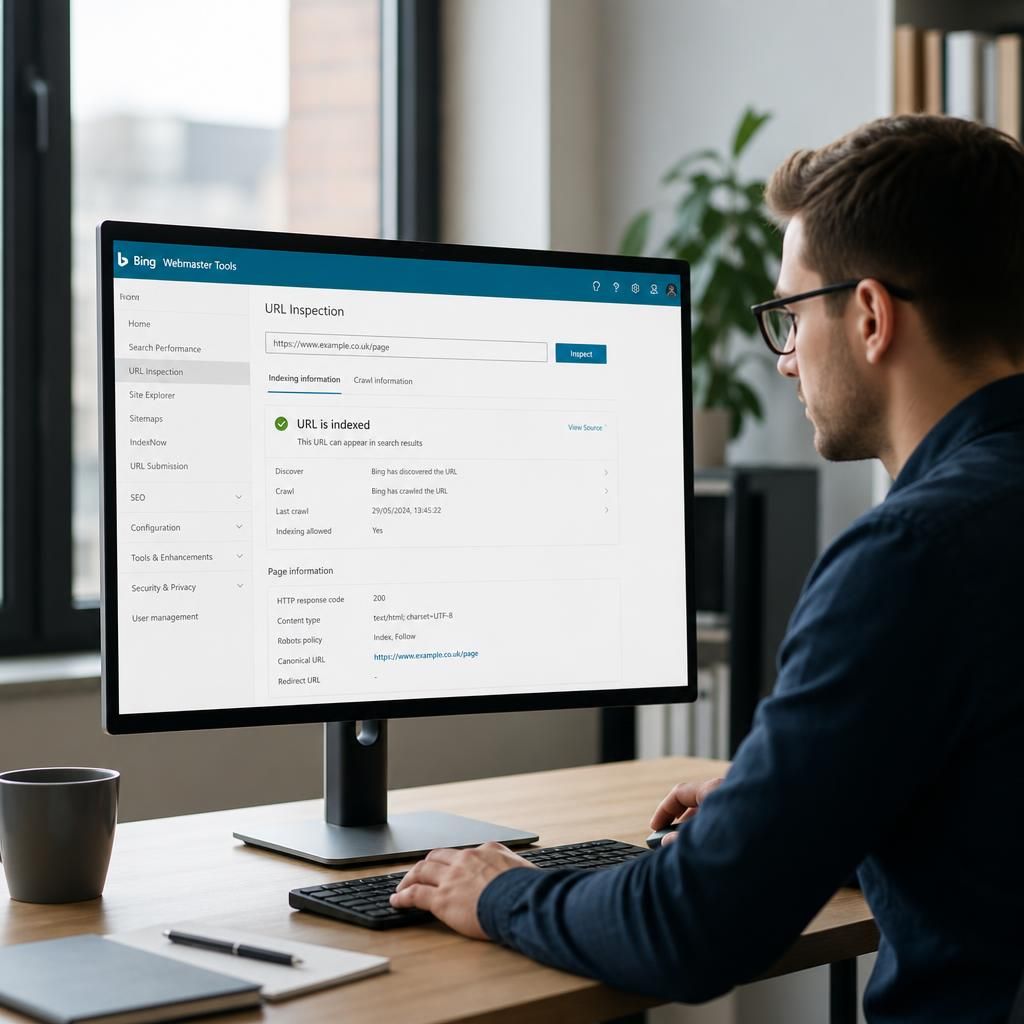
URL Inspection in Bing Webmaster Tools shows whether Bing can access a specific page, how it has processed the URL and whether indexing signals could prevent it from appearing in search results. Enter the exact canonical address, then review the report before requesting another crawl.
Pay particular attention to the page’s indexing status, latest crawl information, HTTP response, robots.txt access, robots directives and canonical URL. A page may be technically available but excluded because it has a noindex directive, points to a different canonical URL, duplicates another page or contains content that Bing has not selected for indexing.
Resolve any underlying issue before selecting Request indexing. This option asks Bing to revisit the page; it does not guarantee immediate crawling or inclusion. Inspect the URL again after a meaningful update, and use your XML sitemap and relevant internal links to support discovery.